Shadowrocket Official Manual
Shadowrocket User Guide
First import your existing connection details, then choose a routing mode. After connecting, check the server and actual access results separately; the switch status alone does not confirm how traffic is routed.
Add a server or import a subscription
Open Shadowrocket and tap Home at the bottom. Find the SERVER group. If you have the settings for a single server, add it manually. If you have a URL that syncs multiple entries, import it as a subscription. Choose either option; there is no need to re-enter the entries in a subscription. Keep the connection switch at the top off during the initial setup, then check the entry after saving.
Enter server details manually
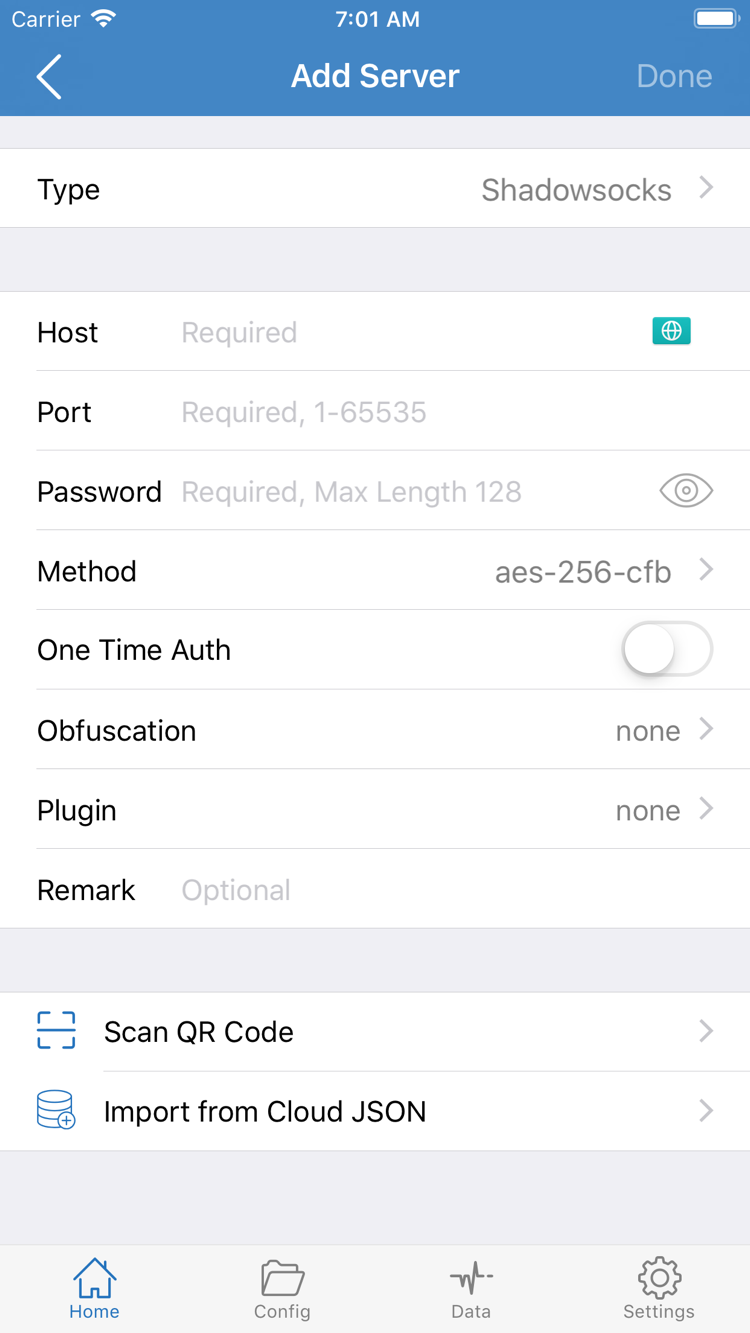
From Home, tap the plus sign or Add Server. Under Type, choose the protocol used by your existing server. The form displays the relevant fields after you select a type. Enter Host and Port as provided: the first is a hostname or IP address, and the second is a port number. Do not paste the port, path, or protocol prefix into Host. If the page shows fields such as Password or Method, fill them in using your existing settings. Do not infer your protocol settings from the order of fields in a screenshot.
Before saving, check for extra spaces, line breaks, or characters that may have been changed automatically. If you have a QR code for the server, use Scan QR Code, then check Type and the address before saving. The bottom of the screenshot also shows Import from Cloud JSON, another import method; regular subscription URLs for this step should not be pasted there.
Import an existing subscription
Tap the plus sign to open the add screen, choose Subscribe under Type, and paste the complete existing subscription URL into the address field. Check that the beginning and end are intact, including any query parameters. Do not replace the original URL with a page address from the browser address bar after a redirect. After saving, return to Home, expand the relevant group, and select a server for the next test. If the group title appears but there are no selectable entries, first check whether the subscription updated successfully rather than assuming the connection switch is the problem.
At this point, you should see at least one selectable entry under SERVER. Note the name of the selected entry; there is no need to copy the subscription URL, password, or QR code into troubleshooting notes. Next, choose a routing mode. Saving a server does not determine which requests will be routed through it.
Choose a Global Routing mode
Return to Home and tap Global Routing. This setting determines how traffic is handled after connecting; it does not add a server or start the connection. If you already have a configuration file and want different targets to use different paths, choose Config. To compare proxy and direct access, first decide which path to test, then temporarily choose Proxy or Direct.
Config: route traffic according to current rules
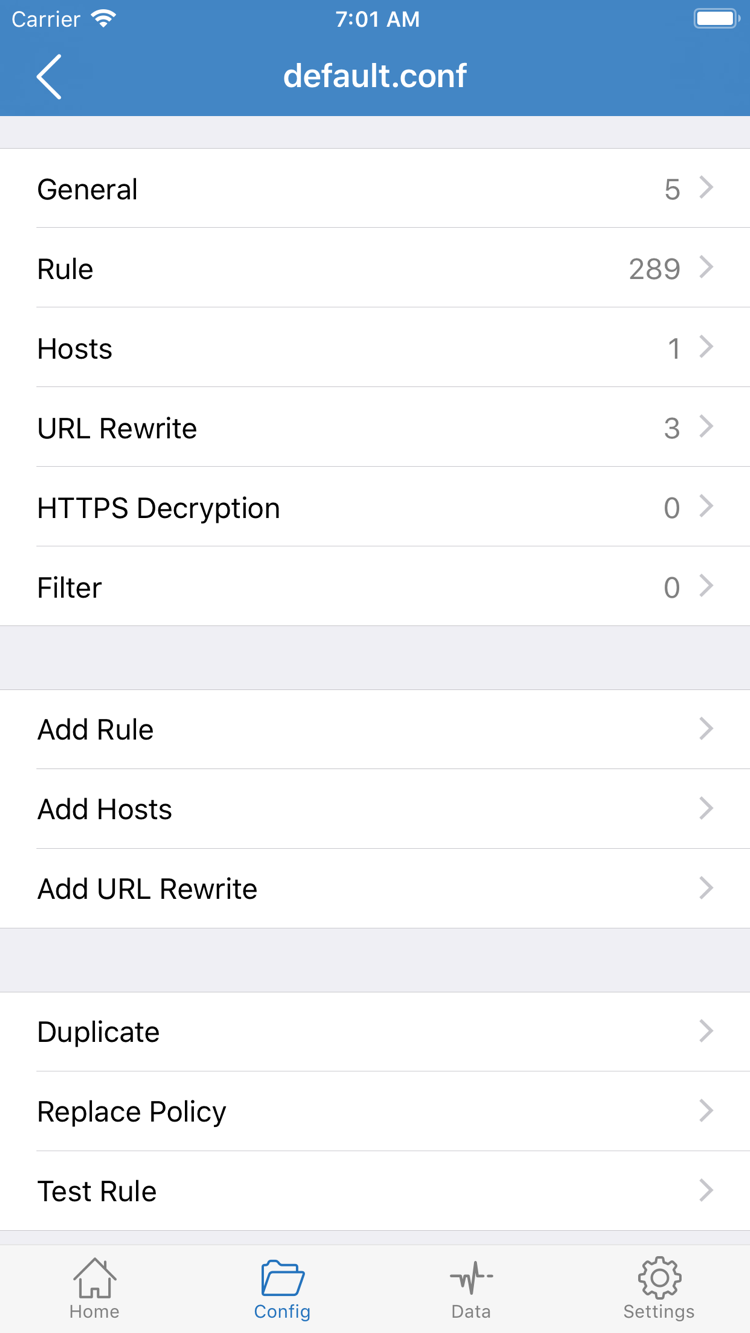
After choosing the mode, go to Config at the bottom and confirm which configuration file is selected. A file appearing in the list does not mean it is active; open the current file from Config, then review the Rule section. Domain rules can match a target address and apply a policy such as PROXY or DIRECT. If none of the earlier rules match, check how FINAL is set in the file. For an initial check, understanding the two expected paths is enough; there is no need to add temporary rules in Add Rule.
A page may also request images or login services from domains different from the one in the address bar. So seeing a rule for the main domain does not mean every request on that page uses the same path. If you do not yet know what the rules should do, test one path first and review the result before returning to Config mode.
Proxy and Direct: compare paths
Proxy sends traffic handled by the client through the proxy path, which is useful for checking whether the selected server can handle real requests. Direct accesses targets directly, which helps check direct access to the same target on the current network. Keep the server, network, and test target unchanged while comparing; switch only the mode. A successful Direct test does not prove that Proxy is working, and a successful Proxy test does not prove that the configuration file matched the expected rule.
After choosing a mode, return to Home and confirm that the Global Routing row shows the expected English mode. For more on rule order or protocol fields, see the technical reference. For now, keep the settings easy to reproduce and continue to the connection step.
Turn on the connection
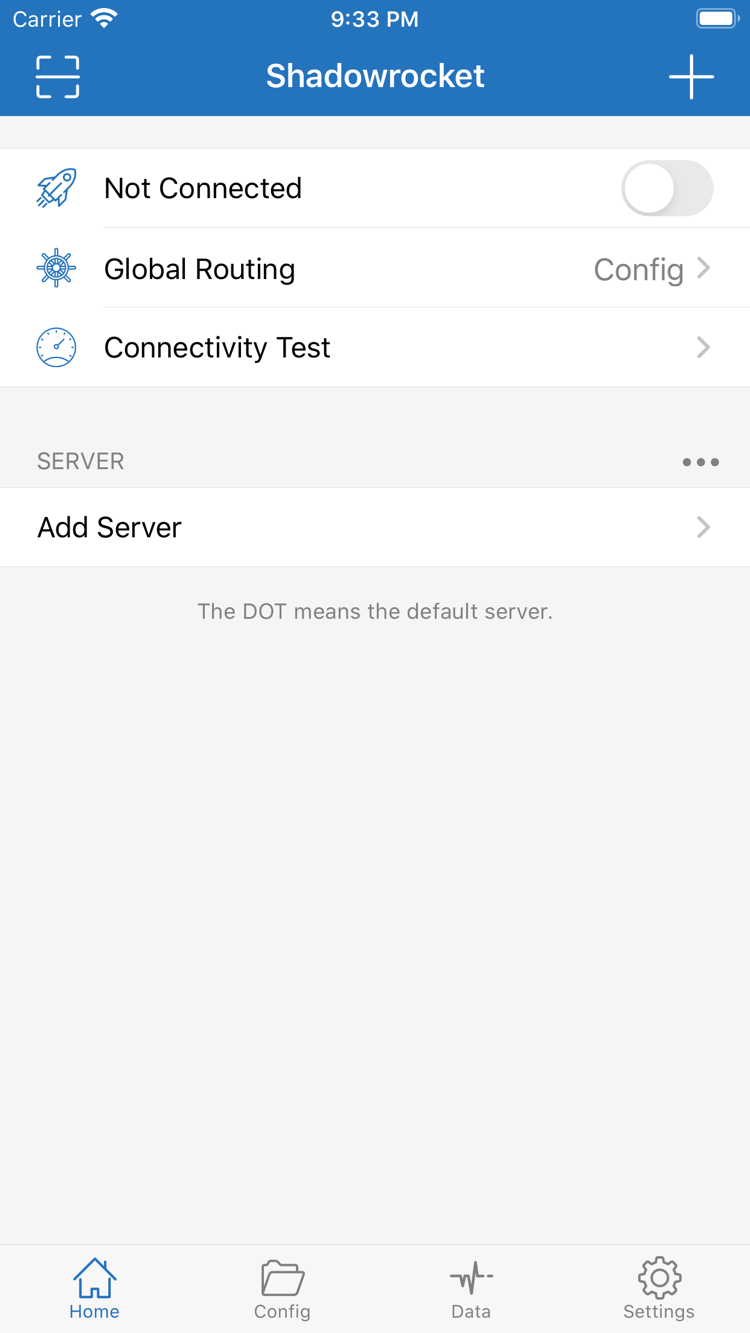
On Home, check two things again: the server selected under SERVER is the one you plan to test, and the Global Routing row shows the mode you just chose. Then turn on the switch at the top of the page, which should show Not Connected. The switch controls the client connection. Selecting a server and a mode are setup steps and do not replace this action.
The first time you use Shadowrocket on a device, the system may ask to add a VPN configuration. Confirm that the prompt was triggered by your action and that the request is from Shadowrocket, then follow the instructions in the system interface. If asked to verify your device identity, do so in the system interface. Return to Home, wait for the status to update, and check whether the switch stays on. If you tapped Cancel by mistake, return to Home and try again; there is no need to delete the server or subscription you just saved.
If the device already has another VPN connection, a managed network configuration, or On Demand enabled, first find out which setting is controlling the connection. Devices managed by an organization should follow the administrator's configuration requirements. For the first test, stay on the same Wi-Fi or cellular network. Avoid switching networks immediately after turning on the switch, so a network change does not look like a server failure.
A switch that is on only means the connection is enabled. It does not prove that the selected server is reachable or that a particular request used the proxy. If the status stays on, continue to the next test. If it immediately reverts, follow step five and check the cause; do not change the mode and server settings repeatedly.
Verify the server and traffic routing
Stay on Home and tap Connectivity Test to view the result for the current server. A response means the test returned a result under the current network and test method; a timeout means this test did not return as expected. The test measures performance under its configured conditions and cannot replace testing real targets. Before comparing two results, make sure they are for the same server entry.
Next, make a real request. If the current mode is Config, choose one target from the known rules that should use DIRECT and another that should use PROXY, then revisit each one. Do not rely only on a page that is already open: caching can make it look normal without sending a new request. If the client shows a record for the request, use its time and target domain to find the entry, then check the policy or matching rule shown. The page loading by itself does not reveal the path used.
If the result differs from what you expected, keep the network, server, and test target unchanged and compare Proxy with Direct. For example, if a target is accessible in Proxy but fails again in Config, first check the active configuration, matching order, and actual request domain rather than re-entering server details. After comparing, restore Global Routing to the mode you need for regular use.
For a basic check, note three things: whether the switch stays on, whether the server test responds, and which policy the request matched. Record them separately to help identify whether a later issue concerns the device connection, server reachability, or routing results.
Troubleshoot by symptom
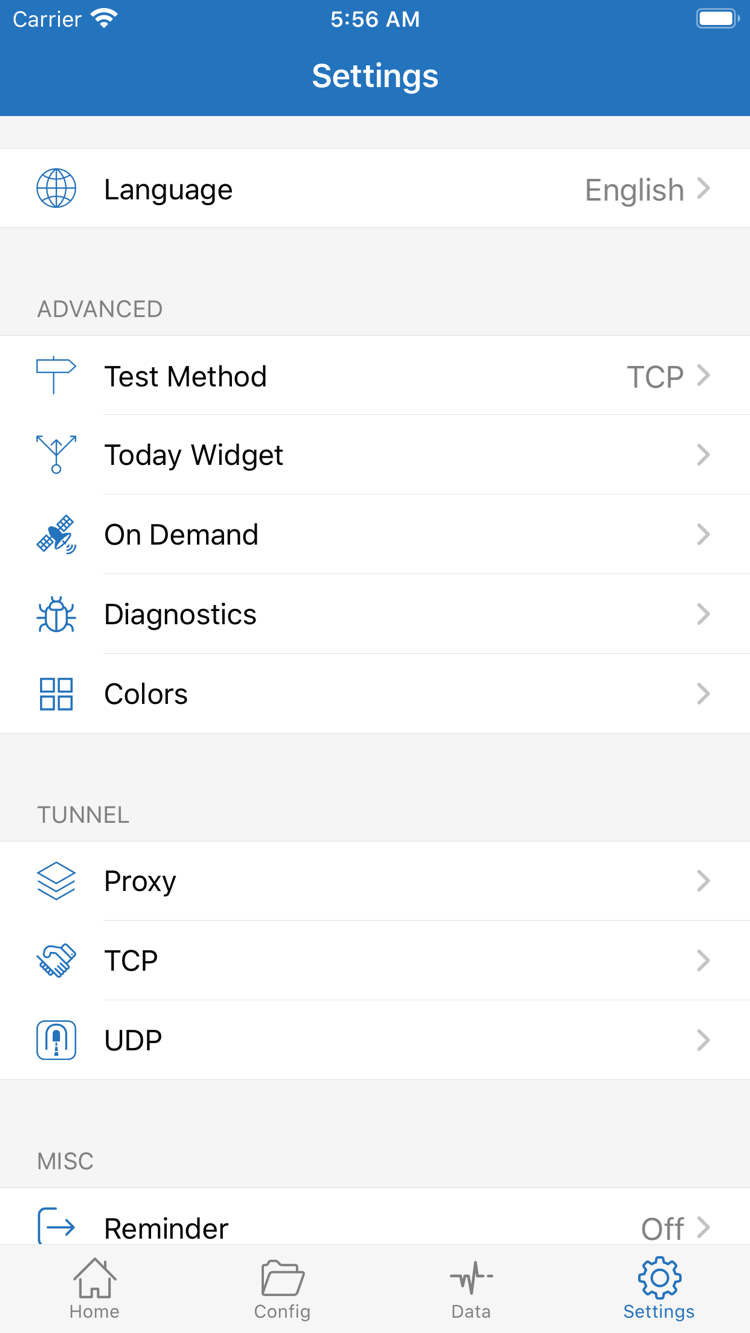
Change one item at a time, then test the same target again. Open Settings at the bottom and find Diagnostics, Test Method, and On Demand. Start with the item that matches what you are seeing; there is no need to change every setting at once.
The switch disconnects immediately, or reconnects after being turned off
If it disconnects immediately after you turn it on, first check whether you completed the initial system confirmation and whether another VPN configuration is already running on the device. Then review Diagnostics for information corresponding to the time of this attempt. If it reconnects after you turn it off manually, check whether On Demand defines a trigger condition for the current network. Before changing an existing setting, note its original state so you can restore it after troubleshooting.
The server list is empty, or a selected entry times out
If the list is empty, return to the add-server steps and check whether the subscription group contains entries and syncing has finished. If entries are present but the test times out, first check the device's network, then compare the selected entry's protocol, host, and port with the original details. Review Test Method to understand what is being tested; do not change the method just to get a different reading. If you compare Wi-Fi with cellular, switch only the network each time and keep the other conditions the same.
The test responds, but some pages will not load
First determine whether the entire page fails or only a specific request, such as an image or login service. Use the mode comparison from the previous step to narrow down the cause. If the issue occurs only in Config, check the active configuration and the target domain of the failed request, then see whether an earlier rule handled it or it fell through to FINAL. Do not change multiple rules at once. For more on subscription updates, system prompts, or mode differences, see Frequently Asked Questions.
When recording an issue, note the time, connection mode, network type, and symptom. Before sharing screenshots or diagnostic information, hide subscription URLs, server credentials, and QR codes that could be used to import settings again.
Get and install Shadowrocket
The iPhone / iPad version costs $2.99 as a one-time App Store purchase; check the App Store page for system requirements. The Mac / Windows / Android / Linux versions are free, with installers available from this site under /dl/. On Mac, check the chip under “About This Mac” and choose the Apple Silicon or Intel version.
A one-time app purchase is not a service plan. This guide uses a subscription or server details you already have; buying the app does not provide these details.
iPhone / iPad: $2.99 one-time; Mac / Windows / Android / Linux: free
If a system warning appears during the first installation on Mac, Windows, or Android, check that the installer came from this site and matches your device, then follow the installation and security approval instructions for your platform. If you cannot confirm the source, stop the installation.